

Novels, essays, academic papers, movies, series, games, music and so on and so forth. The vastness of human creations in knowledge, sciences and arts is gatekept by the harsh laws of the market, and if you wanna tap into it you have to pay. And not the authors, no, you have to pay the companies. Billion-dollars industries that make money off wage theft as much as they do from selling your data to profiling companies where a stalker can pay ten bucks to know your address and full contact information. Streaming services, publishers, cinema studios, AAA game studios, distribution monopolies that suck you into subscription services where you pay to not even own what you bought, because some day you won’t be able to access it anymore for some absurd reason. The artists starve, the human creators are laid off in favour of generative AI models for things such as book covers, draft corrections, coding and voice acting. Piracy is not just the right to access and share art and knowledge: piracy is a form of political resistance to the capitalist structures that produce inequalities in the production and distribution of that art and knowledge.
But enough with the big talk: how do we pirate?
There are hundreds of different ways, but in this guide I will focus on the easiest paths that accomodate for most people’s needs.

Part 1.
Bypass censorship and protect yourself
The first step is to be able to access where the good stuff is. Most countries force ISPs (internet service providers, e.g. Iliad, Vodafone, Verizon) to block a list of sites that usually include the most popular pirate platforms. In some cases, law enforcement might even take action against digital piracy with fines or worse. There are four main ways to circumvent this form of censorship and protect yourself: changing your DNS, using Tor, using a VPN and using a proxy. I will focus on the first three, which cover the large majority of use cases and are easier to setup, and I will also cover ad blocking and tracker protection for a safer browsing experience.
DNS
Recommended to EVERYONE.
Changing your DNS is free and relatively easy to do, and it doesn’t just allow you to bypass (certain forms of) censorship and access all pirate sites, but it can also improve your overall privacy and security.
What’s a DNS?
DNS is the acronym of Domain Name Service, and it is basically the address book that allows your PC or phone to connect to internet sites: it receives the address you input (like www.example.com), it looks up on its massive address book what server hosts that site, and it connects you to that server so you can access the site.
By default ISPs resolve to their own DNS for your internet traffic: this allows them to track every site you connect to and it’s also the tool they use to block pirate sites (by refusing to connect you to them in the first place), but you can easily choose and set up your own choice of DNS on any device.
Setup Guide
There are many good DNS providers you can pick, I personally recommend quad9 which is free and fast, provides protection from malicious sites, doesn’t log IP addresses, is based in Switzerland (which is good, it’s outside the 14 Eyes) and offers a full setup guide for any operating system on its documentation page. I’ll rewrite here the steps for the basic configurations.
- Open your
Settings - Search for
Private DNSand select it - Select
Private DNS provider hostname - Enter
dns.quad9.net - Save
- Open your
Settingsand selectNetwork & Internet - Select
Change adapter options - Right click on your used connection and select
Properties - Select
Internet Protocol Version 4 (TCP/IPv4)and clickProperties - Select
Use the following DNS server addresses- Enter
9.9.9.9intoPreferred DNS Server - Enter
149.112.112.112intoAlternate DNS Server
- Enter
- Click
OK
- Open your
Settingsand selectNetwork and Internet - Select
EthernetorWiFi, depending on your connection type - Scroll down and click
Editnext toDNS server assignment- Note: this setting might be inside an additional layer of menu, like
Hardware propertiesorView additional properties, depending on past or future Windows 11 updates
- Note: this setting might be inside an additional layer of menu, like
- Change
Automatic (DHCP)toManual - Toggle
Onthe switch underIPv4 - Enter
9.9.9.9intoPreferred DNS - Set
DNS over HTTPStoOn (automatic template) - Enter
149.112.112.112intoAlternate DNS
- Download from
SafaritheRecommended: HTTPS (.9)file from the official quad9 documentation- You must use Safari, as it won’t work with other browsers
- In your
Settingssearch and selectProfiles - Click the
+icon - Navigate to your
Downloadsfolder and select the file you just downloaded - Select
Install, thenContinue, then enter your passcode and pressInstallagain
- Download from
SafaritheRecommended: HTTPS (.9)file from the official quad9 documentation- You must use Safari, as it won’t work with other browsers
- In your
Settingsyou should now see aProfile downloadedoption, select it - Select the profile you downloaded and click
Install - Enter your passcode, press
Install, thenInstallagain
Don’t lie to me, you know how to set up a custom DNS
If you don’t, know that the exact steps may vary depending on the distribution you are using, but should be something like this:
- Open your settings and select the WiFi/Network/Internet settings or whatever they are called on your distribution
- There should be an IPv4 setting somewhere, select that
- Disable
Automatic (DHCP), or set it toManualor Automatic (Only addresses) - Enter
9.9.9.9and149.112.112.112as the first and second addresses intoDNS Servers- Usually there is just one field: type both addresses separated by a comma
- Click
Apply
If you are using Firefox or a Firefox-based browser on your desktop, it relays internally to Cloudflare or NextDNS by default. You can change this by following these steps
- Go to
Settingsand selectPrivacy & Security - Scroll down until you find
DNS over HTTPS - Under
Enable DNS over HTTPS using:select: Max protectionif for some reason you want a custom DNS to be only set up for your browser. Otherwise go to step 5.- Then under
Choose provider:selectCustom - Enter
https://dns.quad9.net/dns-queryand pressEnteron your keyboard
- Then under
Offif you are using one of the system-wide configurations above
Final step: verification
Whatever configuration you chose, you can verify that you set up quad9 successfully by simply visiting on.quad9.net. Note that you might need to disconnect and reconnect for the changes to be applied. If something went wrong, be sure to check the full documentation to see if you might have missed something.

TOR
Useful for accessing sites anonymously from your browser.
Don’t use Tor for accessing sites that require login.
What’s Tor?
Tor is a project designed for maximizing both privacy and censorship circumvention. It works by routing your internet traffic through a series of distributed, independent relay servers (called Onion Routers), in a way that makes it impossible for any centralized entity to either stop the traffic or to track where it’s coming from and going to. This also hides from all sites your IP address, a number that uniquely identifies your device and connection. In conjunction with the browser’s default settings aimed at minimizing your digital fingerprint (i.e. to any site you are indistinguishable from millions of other users), this allows you to browse the internet with a level of anonymity that other solutions can only dream of.
Tor is free, secure and easy to install. It’s the top recommendation by security experts and whistleblowers to protect your most sensitive internet traffic and unlike VPNs, the servers that relay your traffic are not under the control of one singular entity that could log your data and later share it with the authorities.
The only downside is that while it is possible to reroute (almost) all your internet traffic through Tor, the basic setup only covers what you do within the Tor Browser and it’s not trivial, nor is it really convenient most of the time, to properly configure your device to do everything through Tor.
How do I use Tor?
The good news is that all you have to do to use Tor is to download Tor Browser from the official Tor Project page. It’s fully open source and it’s available for Windows, MacOS, Linux and Android. For an effective use, don’t change any setting in General and Privacy & Security and don’t resize the window (I know it’s small, live with that).
VPN
Useful for torrents and access to specific regional conent.
Warning: using a VPN bypasses your DNS settings and it is not recommended to use Tor and VPNs at the same time.
What’s a VPN?
Normally, when you use the internet your device connects directly to the sites, servers and other devices you interact with. This means that the other end of the connection always knows your IP address, which as I already said uniquely identifies your device and connection and pinpoints your location. VPNs hide your IP by simply forwarding on one (or more) of their servers all the traffic from and to your device, so that the sites/servers/devices you interact with only see the IP of the VPN server. This also prevents your ISP (and thus your local authorities) from monitoring your internet traffic.
This is more less the same mechanism of Tor, with some key differences:
- Tor is a distributed and decentralized network of independent routers that cannot track your traffic, while VPN servers belong to a single centralized company that may track, monitor and log your activity.
- Tor also anonymizes you by minimizing the fingerprinting from your browser, while VPNs don’t provide any such tools (Mullvad Browser is an exception).
- Tor routes your traffic securely through multiple relays, making it impossible to track you even if one of the relays is compromised. Most VPNs don’t offer a similar option (called multihop) or only do it for paid plans.
- Tor, which is free, is usually faster than free VPNs, but slower than the paid ones.
- VPNs cover all your internet traffic by default, while Tor’s basic setup is limited to browser activity.
- Even on advanced setups that allow Tor to cover all internet traffic, it is strongly recommended to not use Tor to download torrents, while VPNs are fine.
- Most VPNs allow you to choose the country of the server you are using, thus unlocking (some) contents only available in specific regions, which is impossible to do with Tor.
This makes VPNs very useful for using torrents (I’ll get to why in the torrents section) and for unlocking specific regional contents, while it’s preferable to use Tor for private browsing. The main issue is that they are usually not free, and the free ones are usually either painfully slow or NOT trustworthy.
What VPN should I use?
If you’ve heard about it in a YouTube sponsor segment, probably it’s not a good one. Here is a comparison of what I consider the only solid and trustworthy providers (based on their history, transparency and marketing) with their pricings:
| Monthly price* | N. of devices | Multihop | Torrent friendly | Available countries | |
|---|---|---|---|---|---|
| Mullvad | €5 | 5 | Yes | Yes | 50 |
| IVPN Standard | $5 | 2 | No | Yes | 40 |
| IVPN Pro | $10 | 7 | Yes | Yes | 40 |
| Proton Free (slower) | €0 | 1 | No | No | 10 |
| Proton Plus | €4 for 1 year, then €7 | 10 | Yes | Yes | 129 |
* Some providers base their prices in USD and some do in EUR, thus the final pricing may change depending on when and where you make your purchase. Also, for all the providers with monthly prices that vary according on the duration of the subscription, I selected the 1 year option
While there is a free plan for Proton, it is much slower, it doesn’t offer torrent-friendly servers nor multihop and it offers connection to only 10 countries. This makes it almost useless for the only two things for which a VPN would useful. It can still be useful if you don’t care about a very slow speed when downloading torrents.
When looking at the paid plans, it’s immediately obvious that the most convenient is Proton Plus. My personal recommendation, given the 10 devices limit, is to share a Proton Plus subscription among four friends: this would only cost €1/month for the first year, then less than €2 for 2 devices each (a laptop and a phone) with 2 devices to spare. Other offers that are even cheaper on the long term are available on the ProtonVPN pricing page. Mullvad is also a very solid project that has been consistently among the best for years, consider their VPN if you don’t mind spending a little extra money.
Ad Blockers
Pirate sites can be filled with popups, redirects, banners and other malicious stuff you don’t really wanna click. Even on “normal” sites, the easiest way to get a virus on your device or to accidentally submit to a paid subscription is to mistakenly click on an ad. Furthermore, sites and data companies use code from ads to track and profile you. When browsing in general, but especially across pirate sites, using an ad blocker is a must for everyone.
The best configuration is to use Firefox as a browser with the uBlock Origin extension, or one of the Firefox-based browsers that natively implement it (like LibreWolf and Mullvad Browser). This extension doesn’t just disable ads (it removes YouTube ads as well), but it also blocks tracking elements and various malicious codes in sites. If you are not from the US or the UK, you should tweak your setup by clicking on the uBlock extension icon and going to Dashboard, then under Filter lists go down to Regions, languages and select the lists that concern you.
Additional protection can come from the NoScript extension, also supported by Firefox and integrated by default on both Tor and Mullvad Browser.
I personally prefer not to use browsers based on Chromium (Chrome, Edge, Brave, Opera, etc….) since they further cement Google’s monopoly over the internet (Chromium is developed by Google). There are arguments in favour of both sides, but if you wanna use a Chromium-based browser I would personally go to Brave Browser for non-advanced users, which comes with an integrated ad blocker but also supports both uBlock (unlike Chrome, which only supports uBlock Lite) and NoScript, which provide better protection than the integrated one. For advanced users, instead, Ungoogled Chromium is probably the better option.
Part 2.
You can now download all the yuri
Now that you’ve configured your devices, it’s time to download some shit. Among the thousands of different ways to retrieve media across the internet, I will focus on four main subjects: torrents, shadow libraries, streaming and the labyrinth that is pirating music.
Torrents
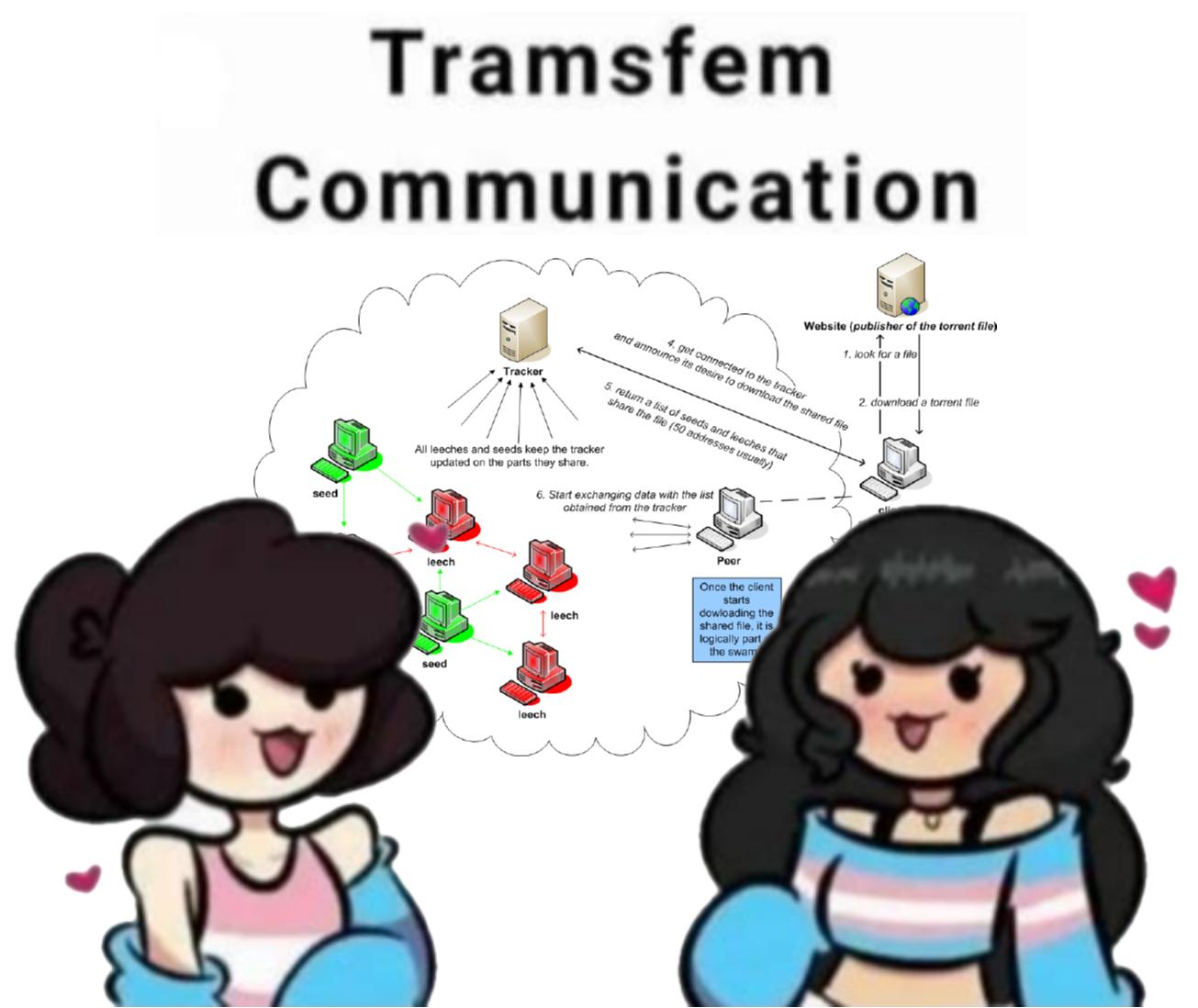
BitTorrent is a protocol that allows people to share and access files inside a distributed network of computers. The protocol is P2P (Peer-to-Peer), which means the computers connect directly with each other and exchange data without going through a third-party server. It works more less like this:
- Alice has a book she wants to share, so she goes to a torrent tracker and puts an “announcement” to say that she has the book
- The announcement doesn’t link directly to Alice, but to a unique identifier given to the book
- Bea looks for the book, finds Alice’s announcement and connects to the network with the identifier for the book
- The torrent tracker helps whoever has a book with that identifier in the network (in this case Alice, the “seed”) connect with Bea to send her a copy
- Now Bea also has the book with its identifier, so she’s now a second seed
- Now if Camilla sees connects to the network with the identifier for the book, she will be able to download it from both Alice and Bea at the same time, making the exchange twice as fast. Then Camilla will be a seed too and so on and so forth
So every computer that downloads a file via BitTorrent can immediately become a seed and share it back to the community: this allows very large files to be downloaded very fast by tens, hundreds or thousands of people at the same time without a single computer or server having to reach impossible upload speeds. This protocol also makes it very hard to take down any piece of media, since the file doesn’t sit in a single server but it is instead copied across tens/hundreds/thousands of devices scattered around the globe.
When talking about piracy, torrents are the easiest way to get pirated movies, series, games and other pieces of software.
How to download torrents
IMPORTANT: in most countries, downloading pirated files is not illegal but uploading is. While usually law enforcement doesn’t bother with it, in some countries (like Germany) it’s easy to get caught and fined for torrents (as you both download and seed by default). To avoid consequences, use a VPN.
In order to download a file through BitTorrent you need two things: the identifier of the torrent (which is either a magnet link or a .torrent file), and a torrent client (the application that allows you to connect to the P2P network). One of the most popular and solid options for a client is qBittorrent, which is available on Windows, Linux and MacOS and very easy to set up and use.
To find a file to download you instead have to browse a torrent website. There are hundreds of them, but my personal favourites are the following:
- 1337x for movies, series and software
- The Pirate Bay for movies, series and software
- Rutracker for music (it requires an account, and translation tools if you don’t know Russian)
- TorrentDownloads for software
- Torrentz2 as a meta-search engine (not a torrent site itself, it searches through different torrent sites)
Note: the links above might become invalid at any time due to addresses being taken down by law enforcement. A simple web search should allow you to find working proxies to these sites.
All you have to do is then:
- Search on one or more of these sites for the thing you want
- Select your chosen torrent
- torrent sites usually show an indicative number of seeds for every torrent: select the torrent with the highest number to get faster download speed
- Copy the magnet link (or open it directly in qBittorrent) or download the
.torrentfile - On qBittorrent:
- if you copied the magnet, click the link icon on the top left, paste your link and add the torrent
- if you downloaded the
.torrentfile, click the+icon on the top left and select the file you just downlaoded
- Now wait for your computer to connect to the peers and download the file
Click here for a practical example
- I search for “portrait of a lady on fire” on ThePirateBay
- There are many options:
- I see the top result has 92 seeders, weighs 1.38Gb and it’s from a trusted user (green or pink skull), but I check and the resolution is too low, so I go back
- I scroll down and find another result with 215 seeders that weighs 2.15Gb and it’s 1080p; even if the user doesn’t have a green or pink skull, the upload is from 2020 and still has more than 200 seeders, so it’s probably trustworthy
- On ThePirateBay, the magnet link is the
GET THIS TORRENTbutton right next to the magnet icon - If the browser prompts me to open the link on qBittorrent, I accept and click
Downloadon the dialogue. If it doesn’t:- right click the magnet and select
copy link - I then open qBittorrent, select the
Open URLand the link gets automatically pasted, so I just clickDownload
- right click the magnet and select
- Now wait and enjoy
For watching downloaded movies and series in any format, the best player is hands down VLC. If you need additional subtitles, opensubtitles offers a gargantuan catalogue in most languages. In order to apply a subtitle file to a video on VLC, you just need to drag and drop the .srt file (if you downloaded a .zip you have to extract it first). If the subtitles are out of sync, use the G and H keys to adjust them.
Streaming
There is not much to say about pirate streaming. Its only advantage over torrents is that you don’t have to downlaod a movie or a series beforehand, while downloaded files have a long list of advantages:
- you can rewatch them without additional data consumption
- you can watch them at any moment, even without an internet connection
- they usually have higher quality than streaming sites
- they don’t stutter if you are a on low speed connection
- it’s easy to pass something you’ve watched to another person, while streaming sites get taken down constantly making links unreliable
- downloading from torrents allows for seeding, which actively contributes to a communal effort for the distribution of media
This said, pirate streaming has its use cases. If I have to stream I usually resort to 123movies: as of March 2026, on the domain ww25.0123movie.net you can find a vast catalogue of movies in their OVs with subtitles (you can even upload your own subtitle file).
Shadow Libraries
Other than having the most badass name of the batch, shadow libraries are one of the best things that ever happened to humanity. They are digital catalogues born with the intent of archiving, preserving and allowing free access to media that would be otherwise gatekept, paywalled or lost. In these repositories you can find scientific and academic papers, articles, books, newspapers, web pages and so much more. They are always free and usually don’t require an account, and in most countries it’s not even illegal to download from them.
The most prominent shadow libraries are:
- Library Genesis, or libgen, which holds a vast catalogue of both books and academic papers
- Sci-Hub, the largest repository of freely accessible papers and researches which would be normally paywalled and gatekept
- Z-Library, originally a mirror of libgen which has greatly expanded
- UbuWeb, a library of avant-garde artistic creations of any kind, from music and movies to visual poetry and comics
- Anna’s Archive, not a proper shadow library but a project that aggregates archives from many shadow libraries like LibGen, Sci-Hub and Z-Library
- Internet Archive, also not technically a shadow library, but it catalogues books, movies, videos, recordings and software, and most notably it archives web pages on its Wayback Machine so you can visit old versions of them or even pages that don’t exist anymore
If you are looking for a book, a journal or an academic paper or research, you’re probably gonna find it on Anna’s Archive, since it operates as a meta-search engine to the largest catalogues of pirated texts.

Pirating music
In an era where music streaming services (and also some of the artists themselves) don’t pay independent artists and instead give the money to the illegitimate genocidal State of Israel, pirating music is not just convenient, it’s a necessity.
There are some exceptions of course: I encourage people to use Bandcamp and support independ artists by buying their music directly, instead of relying on a subscription service that gives fractions of a cent to artists that are not already rich enough to buy a commercial trip to space and call themselves astronauts. But for the artists that are not on Bandcamp or Soundcloud there aren’t many options but to pirate.
There are two ways:
- You use a cracked version of a streaming app, like Spotify or Deezer, thus giving them your data (which is just as precious to them as your money) but using premium functionalities and listening to whatever music you want any time you have an internet connection, for free. With cracked Deezer you can also download music for offline usage.
- You download your music and listen to it offline, which is more time consuming, requires a decent amount of storage on your device (a full album takes up around 100-150Mb most of the time), and doesn’t give you immediate access to any music you want, but on the other hand doesn’t give evil companies your data and allows you to listen to music even when you don’t have an internet connection.
- Actually for the advanced users there is a third solution called Jellyfin that allows you to store media (both audio and video) on your own server and stream it on your devices, thus making a DIY Spotify.
It’s hard to make a consistent guide on pirating music because streaming giants constantly come up with new ways to block the exploits used for piracy, making anything I would write today probably obsolete within 1 year, and while some projects try to circumvent the new obstacles, most are abandoned.
For cracks:
- SpotX (Windows) and SpotX-Bash (MacOS and Linux) remove ads from spotify desktop
- Deezer and Spotify cracks for Android can be found with a web search for
deezer premium mod apkor its Spotify counterpart. Be careful with what you download and install on your phone, be especially suspicious of recent uploads (if it’s less than 1 week ago it’s probably a scam) and check if the size of the cracked version roughly matches the size of the normal app - Cracks for iOS are significantly harder to find and install due to the jailbreak requirement
For downloading music, there are two excellent guides on rentry. The first one is very easy to follow, while the second one goes a lot more in depth. For archiving purposes, this is the exported version of the first one.
I personally either download music as torrents or I use one of two Telegram bots, @MusicsHuntersbot and @DeezerMusicBot, both of which download music from Deezer, and for playing the music I download on my Android phone I use VLC.
I hope this guide was not too tedious. It was certainly very long, even though it just scraps the surface of the world of digital piracy. If you have any questions or suggestions, or if there are any errors you wanna point out, please don’t hesitate to contact me.
The picture on top (credits: Warren Photographic) shows a trail of leafcutter ants (Atta cephalotes) while they carry precisely cut leaf segments to their colony. There the smaller ants cultivate fungi of the family Lepiotaceae. Yes, they cultivate fungi. One of the few animals on earth to have developed agriculture (and having done so millions of years earlier than humans), leafcutter ants are in an obligatory symbiotic relationship with the fungi they grow in their gardens: ant larvae need to eat the fungi to survive and grow up, and the fungi need the ants to bring them fresh leaves as food. Here is a picture of an Atta celphalotes fungus garden (ph: Michael Siluk)

Other than nutrition, leafcutter ants also provide an additional benefit to their fungi: the ants’ exoskeletons are coated by a species of Pseudonocardia bacteria, organisms that produce antibiotics that protect fungi from mycoparasitic microfungi (very small fungi that parasitize bigger fungi).
Leafcutter ants and their fungi also have a complex biochemical system of communication that allows ants to be receptive of the fungi’s reaction to different plants, so the ant colony will bring leaves from the most nutrient plants and avoid the ones that are toxic to the fungi. This extremely sophisticated relationship has developed over tens of millions of years, reshaping the domesticated fungi to be as nutritious for the ants and to lose the ability to produce sexual spores, making its reproduction entirely dependent on the ants.
Another characteristic of leafcutter ants is their particularly complex system of castes and social specialization based on their polymorphism (i.e. different sizes) and age, allowing for efficient control of very large areas: their colonies usually extend for 200m2 on the surface and have nests up to 7m deep in the soil.
Leave a Reply