

Since the very dawn of Android, there have been many tools used to tinker with its code to gain full control of your own smartphone. From root privileges to custom roms, most methods require a decent amount of dexterity and knowledge of the way Android works, and they are often not available for all devices. Not only that, but in a lot of cases invalidate the warranty of the device and, worst of all, they compromise its security.
While I will briefly mention some of these other methods, today I will focus on a very flexible tool called ADB (Android Debug Bridge), which is compatible with all Android devices and, while not being as powerful as other methods, allows for a very clean and reversible way to deal with all the unwanted applications you can’t normally uninstall from your Android phone.
- Understanding Android
- Debloating
- Debloating with ADB
- Replacing Google apps
- Bug of the month: overengineering piss in the order Hemiptera
Understanding Android
Let’s start with the basics. Android is an operating system, usually running on smartphones and tablets, based on Google’s AOSP (Android Open Source Project). Explained in an oversimplistic way, open source means that all the code for the software you’re using is actually public and you can see what the program actually does; it also means people can copy, use and modify it to create their customized version of the software. On the opposite side of open source there is proprietary software, the code of which is not published so you don’t actually know what happens under the hood when a program runs, and can be implemented for malicious purposes, e.g. collecting data without you knowing and not allowing you to disable advertisement, like most social media apps do.
Note: there is actually a difference between proprietary and closed source, but for all the intents and purposes of this discussion it doesn’t really matter, since the large majority of proprietary Android software and in particular what is considere bloatware is not source-available.
Despite being developed by Google, AOSP does not actually include any proprietary piece of software and does not include any Google proprietary app, like Google Search, Google Play Store or Google Play Services (now called GMS). All custom roms (custom versions of Android not distributed directly by phone manufactorers) you may have heard of, like GrapheneOS and LineageOS, are based on AOSP.
The issue with proprietary software arises when manufactorers build their own version of Android, which does not only customize the graphic interface (the “appearance” of the operating system) but also introduces a lot of apps (phone “cleaners/optimizers”, “vaults”, stores, games and many others) developed by them, almost always proprietary and impossible to uninstall. Due to commercial agreements, among the preinstalled apps you will also find an entire Google suite (Search, Chrome, Assistant, Calendar, Photos, Maps, YouTube, Drive, Movies, etc…) together with GMS (a.k.a. Google Play Services), an app that manages a lot of background processes in your phone, monitors your actions, collects data and allows the integration of many functionalities. All these activities constantly run in the background, creating a lot of drawbacks:
- massive battery drain, and therefore also faster battery degradation through months/years
- major unrestricted mobile data usage, which also slows your internet connection
- constant CPU load, making your phone slower
- possible increased heat from battery and CPU usage
- massive storage usage, increasing through time
- unavoidable data collection, sold to data brokers, advertisers and goverments
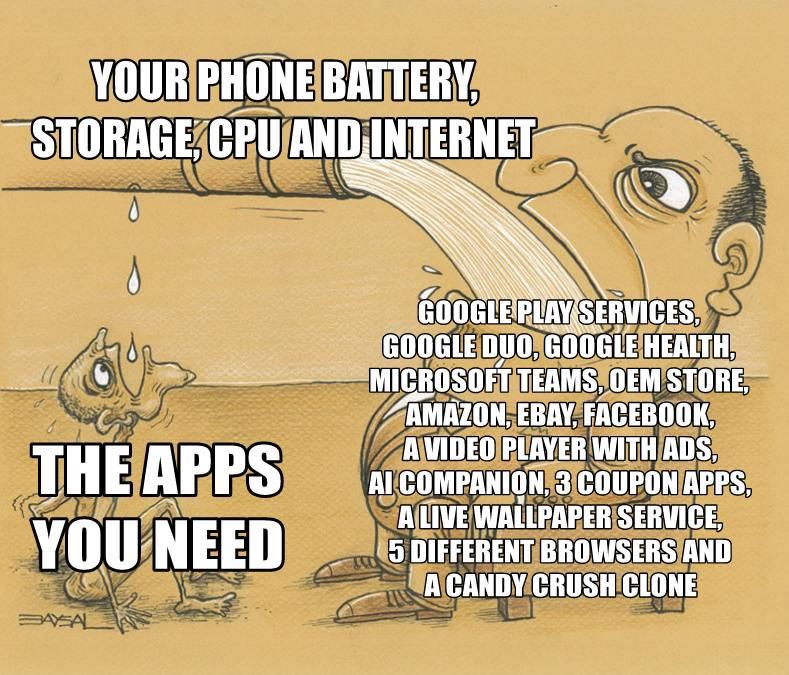
Any program with these characteristics which is hard or impossible to uninstall would normally considered a virus, but companies like Google, Microsoft and phone manufacturers keep bloating our systems with these apps.
Additionally, starting in Setpember 2026 or January 2027 (depending on geographical region) Google is rolling out a way to block sideloading, i.e. installation of apps outside of PlayStore or stores from manufacturers (e.g. Galaxy Store, Xiaomi GetApps, etc…), thus blocking the installations of apps like NewPipe (YouTube client that removes ads and doesn’t track you among other things) and F-Droid (store for android apps that are fully free and open source) unless you undergo a lengthy, complicated and deceptive process dictated by Google. You can learn more on keepandroidopen.org, but just know that this is easily circumventable by removing the future package AndroidDeveloperVerification (com.google.android.verifier) using any of the debloating methods below.
Debloating
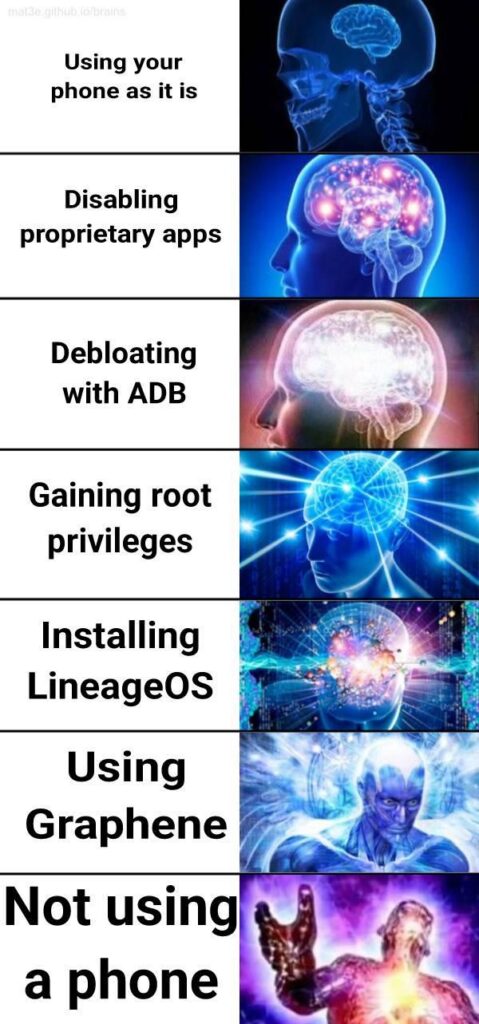
Debloating is the process of disabling or entirely removing unwanted software (the “bloatware”) from your phone. There are different methods and approaches, each with its own effectiveness and drawbacks, and while ideally the best option would be having a Pixel with GrapheneOS (more on it later), real life scenarios can be complicated and every situation requires different solutions (for example right now I am using ADB myself after 8 years of using a degoogled custom ROM).
Method 1: Disable unwanted apps
The easiest but least effective way to debloat is by disabling apps without uninstalling them. To do this go into Settings > Applications (or something like that), click on the three dots (usually at the top) and select Show System Applications, then scroll to the app that annoys you, select it and click on the Disable button. For a lot of apps, like GMS, this option is not actually available and you cannot disable them with this method.
Method 2: Root privileges
A more powerful way to debloat is by accessing root privileges, or “rooting”. This can be done in many ways, and requires steps like unlocking the bootloader (which could invalidate warrant in a lot of cases and introduces security risks), and tampering with system files with tools like Magisk. Some apps, mostly banking ones, may not work when detecting root, but there are ways around this restriction (like this; a quick search on your favourite search engine will certainly be of use if the linked guide is outdated). If you are confident enough to go down this route and the other methods don’t meet your needs, there is an exceptionally good guide by IsHacker on XDA.
Method 3: Custom ROMs
If you really wanna go the next step, custom ROMs are the way, as they will completely replace the operating system on your device with one of your choice. Currently maintained open source projects include LineageOS, crDroid and iodéOS (there is also GrapheneOS but it deserves a spot on its own). These custom ROMs give you pretty much full control over your phone, with easy access to root privileges and full customization. They are not available for all devices, and installing them also requires unlocking the bootloader (with the same possible warrant loss and security risks as above), but they are definitely more private than whatever your phone’s manufactorer gave you in the first place. Google apps and GMS can be installed alongside the custom rom if you choose to, but are not included by default. There is also a software called microG that aims at replacing GMS with an open source “fake” GMS.
Technical note: despite what many blogs claim about the need of signature spoofing for microG being a security risk, both LineageOS and iodéOS only allow it specifically for microG, so there is no actual security risk linked to these implementations of signature spoofing.
Method 4: GrapheneOS
GrapheneOS is the gold standard of custom ROMs. As of 2026, it’s only available for Google Pixel phones (for reasons concerning hardware components for security and longer security update support), which are usually expensive but can be found refurbished for a significantly lower price (backmarket sells refurbished phones across most European countries, plus Australia, Japan and the US; also consider the device lifetime if you wanna purchase one). Starting in 2027, Graphene’s collaboration with Motorola will hopefully bring to a cheaper device with GrapheneOS installed out of the box.
While debloating is not the primary purpose of GrapheneOS, it works just like other custom ROMs and thus allows you complete control on what’s installed and what is not on your phone. Additionally, Graphene implements a very, very robust security model, which maintains a locked bootloader and introduces many tweaks that make it even more secure than “vanilla” Android (or any other custom ROM for the matter), as it has proven many times by resisting penetration attempts by both hackers and law enforcement. Even if you wanted to use Google’s comforts, Graphene uses a modified sandboxed version of GMS and Play Store, which basically you can treat as a “normal” app (like preventing them from running in the background, accessing internet connections or allowing you to disable/uninstall them). If you have the possibility, I strongly recommend using Graphene, as it’s the most robust, secure, private and stable operating system you can have on your phone by a large margin.
Debloating with ADB
For everyone who doesn’t want to tamper with system files, invalidate warranties or unlock their bootloader, or cannot access a specific phone with support for Graphene or any other custom rom, there is another way to deal with all the annoying bloatware preinstalled on your device: ADB.
Android Debug Bridge is an open source tool, as old as Android itself, created with the primary function of debugging Android phones from a computer terminal. It’s available for Windows, Linux and MacOS, and it allows you to basically do anything that would normally require root privileges, without having to unlock the bootloader or rooting your phone. This includes disabling and uninstalling (or restoring) system apps, including GMS and all preinstalled Google Apps.
For those who are comfortable with it, the base software works through terminal command line, but there are easy to use graphic interfaces like Universal Android Debloater for people who might be less adept at terminal commands.
Prepare your phone
In order to use ADB, you need to follow these preliminary steps on your phone:
- Go to Settings, and use the search bar to find “build number”
- Click 5 or 7 times quickly on the Build Number field: this will enable Developer Options
- Go back to Settings, search and select Developer Options (it’s usually inside the “System” section)
- Scroll down to USB Debugging and switch it on
- This allows making modifications to your phone from another device when they’re connected through USB, i.e. you can now use ADB. REMEMBER TO TURN THIS OFF when you’re finished with ADB
- Link your device to your computer with a USB data cable (be sure it’s not charge-only) and select the Transfer files option. Otherwise, Android 11+ supports wireless debugging.
- You should now see “USB Debugging is active” in your notifications
After the first time, you will only need to follow the steps 3-5.
An additional important step, if you are logged in to a service of the device manufactorer (e.g. Samsung account) and you plan on removing apps from the manufactorer (e.g. Samsung store or something like that), is to log off from that account in your system account settings before debloating.
In general, always create a full backup before tampering with your phone
Prepare your PC
If you are using Universal Android Debloater, read their guide. Use this guide if you are gonna use the command line.
- Download SDK Platform-Tools for Windows from the official Android Developers page
- Put the
.zipfile into a separate folder of your choosing, and extract it there - Enter the platform-tools folder, right click on an empty space and click select Open in Terminal (in older Windows versions you might need to shift+right click and select Open Powershell window here)
- Type and enter the command adb devices. If your connected device isn’t listed, check your phone and if there’s a prompt for debugging tap Allow, then retry the command adb devices, it should list your connected phone
- Download SDK Platform-Tools for Mac from the official Android Developers page
- Put the
.zipfile into a separate folder of your choosing, and extract it there - Open Terminal
- Drag and drop the platform-tools folder on the terminal window
- Type and enter the command adb devices. If your connected device isn’t listed, check your phone and if there’s a prompt for debugging tap Allow, then retry the command adb devices, it should list your connected phone
- Install the Android Platform Tools package (either android-tools or adb) using your package manager of choice
$ sudo apt install adbon Debian-based distros$ sudo pacman -S android-toolson Arch-based distros$ sudo yum install adbon Fedora/CentOS/RHEL$ sudo apk add adbon Alpine Linux$ sudo zypper install adbon OpenSUSE
- Run the terminal command adb devices. If your connected device isn’t listed, check your phone and if there’s a prompt for debugging tap Allow, then retry the command adb devices, it should list your connected phone
Use ADB with commands
Once your device is recognized by ADB, the first thing you have to do is to open an adb shell by entering the command adb shell. Alternatively, you can add adb shell before any of the commands I’ll list. Once you’ve opened the adb shell, you can use adb’s package manager (pm). The commands you’ll need for debloating are the following:
- pm list packages will list all the packages on your phone
- If followed by a string of characters, it will only show the packages containing that string, for example pm list packages google will list all the packages that contain “google” in their package name
- Often the package name is different from the name of the app, i.e. Gmail is actually com.google.android.gm. You can find a list here (it could be incomplete or outdated by the time you read it, a quick search of “android apps package names” should be enough)
- adding -d, -e, -s and -3 shows respectively only disabled, enabled, system and third party packages
- pm disable PackageName will disable the app corresponding to the given PackageName
- pm enable PackageName will enable the app with the given PackageName
- pm uninstall –user 0 PackageName (the one after –user is a zero) will uninstall the app with the given PackageName
- The flag –user 0 is necessary because ADB doesn’t have permission to completely erase the package from the system. However, it will uninstall it for the user and the only trace left will be the .apk file inside the system folders, which holds no user data and is never loaded by the phone during usage. It also allows the app to be reinstalled if necessary.
- pm clear PackageName will delete any data from the app with the given PackageName
- pm install-existing PackageName or pm install -r PackageName will reinstall an app that was uninstalled via ADB
A full list of adb commands and options is available on the official Android Developers site.
ADB without a PC
There is actually a way to use ADB without a PC. If you have Android 11+ and a wireless connection, the app Shizuku allows you to run an ADB shell with any command terminal app, like aShell You. Although the permissions are limited, they are sufficient to perform the debloating commands discussed above.
Shizuku provides a very well made step by step guide for its configuration. Once you’ve paired the deviced and started Shizuku’s ADB session, you need to authorize your chosen terminal app. From here the steps change depending on your choice of terminal app, but if you’re using aShell You, all you need to do is to click on Local ADB within the app and you’ll be inside the ADB shell.
Replacing Google apps
There are lots of videos and blog posts about alternatives to Google apps, and while I could spend hours yapping about them I think the best thing I can do is just give my two cents about my personal favourite recommendations.

| Google app | Open source alternative |
| Play Store | F-Droid for open source apps Aurora Store for everything else Obtainium for power users |
| Google Maps | Bimba or TransportR for public transport CoMaps for everything else |
| Google Search / Chrome | IronFox or Fennec |
| YouTube | PipePipe or NewPipe |
| Google Calendar / Phone / Contacts / Messages | Fossify (Calendar, Phone, Contacts, Messages) |
| Calculator | NCalcLibre has been discontinued 7 years ago but imho it’s still hands down the best calculator ever |
| Snapseed | Photo Editor is not actually open source but it’s not owned by Google at least, and it’s very powerful |
| Google Drive | Nextcloud or use a hard disk drive for storage LibreTorrent or iyox Wormhole for file sharing |
| Google Keep | Open Notes or Fossify Notes for offline usage Joplin for syncronized notes |
| Gboard | Simple Keyboard or Heliboard for typing EweSticker for stickers GifBoard for GIFs |
| Camera | Open Camera (may have issues with multiple cameras) |
| Gmail | K-9 Mail or Thunderbird (they are literally the same app) |
| Photos | Fossify Gallery for local gallery Ente for cloud storage |
| WearOS | Gadgetbridge |
| Google Fit | Health by Vayun Mathur |
| Find My Device | FMD |
| Google Meet | Jitsi meet |
| Google Docs, Sheets, Slides | MA Office by Vayun Mathur |
A good list of general alternatives, although destined to become outdated as it was discontinued in 2024, can be found on the DivestOS site. There are two very strong suites of apps that fulfill various purposes: the Fossify app family and Modern Apps by Vayun Mathur. More recommendations can be found on itsFOSS, this list on GitHub by user Offa, and in general by scrolling F-Droid (beware there is also garbage in there). Sooner or later I will also probably make a blog post specifically about messaging apps.
And now it’s bug time
Bug of the month: overengineering piss in the order Hemiptera
Urinating mechanics are often overlooked, but their efficiency is crucial for the success of almost any animal. And some insects of the order Hemiptera took the job very seriously.
You see, while large sized animals, like most mammals, have the ability to urinate via jet streams, because of how fluid dynamics work this is impossible at smaller scales, since surface tension dominates over the inertia, gravity and muscular push from the bladder that we usually rely upon to eject urine. For this reason, most insects pee by slowly ejecting droplets from posterior cavities, which then detatch and fall when they’re big enough. But some members of the order Hemiptera (the so called true bugs, which comprise cicadas, aphids, shieldbugs, leafhoppers and treehoppers among others) have found some niche strategies that allow them to secrete, and thus consume, large amounts of liquids very quickly.

Cicadas, other than being the loudest insect on Earth (they can exceed 100dB, as loud as a jackhammer), having lifecycles of more than ten years for some species (like Magicicada sp. with 17 year lifecycles), being extremely good at camouflage and honestly just being so fucking cool, have also broken the piss meta. Cicadas have evolved a system of larger internal ducts for both their suction apparatus and their hindgut, alongside a larger anal cavity, which allow them to transform both the feeding and the excretion processes into one singular, syncronized mechanism. These differences that set them apart from other bugs make it more energy-efficient to overcome the dominating surface tension and piss in jet streams instead of droplets, and not just simple jets: with a velocity of 3m/s cicadas produce the fastest urine jets in the whole animal kindom, definitely faster than humans and even than elephants. These incredible urination feats allow them to consume up to 300 times their body weight in xylem sap every single day. They also use their piss spray ability to repel intruders, for cleaning from mud, and even to agglutinate soil for underground hallways and chambers. Cicadas are just that cool.
See Elio J. Challita & M. Saad Bhamla, “Unifying fluidic excretion across life from cicadas to elephants”, PNAS (2024)
(source)

Another incredible development of urination mechanics comes from insects commonly called sharpshooters, a group of leafhopper species in the family Cicadellidea. Instead of letting the droplets of liquid waste slowly form and then fall off naturally, sharpshooters have developed a unique way to make quick work of them. Their anal cavity terminates with a stylus, which rotates squeezing the liquid out into a droplet and building up elastic energy inside its tissue; as soon as the droplet reaches the required size (which takes about 80 milliseconds), the stylus gets “released” and works as a catapult bucket, rotating exactly at the resonant frequency of the droplet and yeeting it faster than the movement of the stylus itself. This mechanism in physics is called superpropulsion and allows to release the droplets as fast as physically possible with the smallest amount of energy expense. In simple terms, sharpshooters use a superpropulsion anal catapult to yeet piss as fast as possible. The world of insects is truly incredible.
see Elio J. Challita, Prateek Sehgal, Rodrigo Krugner & M. Saad Bhamla, Droplet superpropulsion in an energetically constrained insect, Nature (2023)
(source)

Unironical shoutout to Elio Challita and Saad Bhamla for dedicating their lives to studying the ways hemipterans pee <3